How to Set Up Your Business Profile on Google and ChatGPT
As the search landscape changes, it’s becoming more likely that when someone looks up your organization, the answer won’t come directly from your website. It will come from additional search features like AI Overviews, Google Maps, or a chat with ChatGPT. This is why Generative Engine Optimization (GEO) is becoming so important, and why creating and maintaining a business profile is one of the ways that you can make sure the information about your organization is accurate.
Google has offered free Business Profiles for years. Now OpenAI has launched something similar: business profiles in ChatGPT, managed through a tool called Business Hub. Both are free, and both let you claim your organization’s listing, keep your details current, and see how people find you.
This guide walks through what each profile does, who qualifies, and how to set them up.
- Google Business Profile Setup
- ChatGPT Business Profile Setup
- Tips to Keep Your Listings Current
- How Cornershop Can Help You Get Started
Key takeaways
- Both profiles are free. You don’t need to run ads on Google or ChatGPT to claim a listing.
- Google Business Profiles are for organizations that meet people in person, at your location or theirs. Groups that only work online don’t qualify.
- ChatGPT business profiles are open to anyone who owns or is authorized to represent an organization. The feature is still in beta, so options vary by location and organization type.
- Both require verification. ChatGPT asks a real person on your team to verify their identity with a government ID.
- Claiming a profile won’t guarantee more visibility, but it’s the most reliable way to make sure the information people see is accurate.
What is a business profile, and why does it matter?
A business profile is a listing you control on a search platform. It holds the basics: your name, website, address, description, logo, and photos. It’s the source the platform trusts most when it talks about you.
Google Business Profile
A Google Business Profile is the listing that shows your address, hours, phone number, photos, and reviews in Google Search and Google Maps. It helps people find your office, clinic, visitor center, or program site. If you run Google Ads, it also lets your ads show your address and a map pin.
ChatGPT business profile
A ChatGPT business profile is newer. Through Business Hub, you can claim your organization, add details like your website, description, category, and logo, and see how people engage with you in ChatGPT. Once you’re verified, your profile gets a blue check.
Why it’s worth the effort
More people are asking AI tools for recommendations, like “What are the best food banks near me?” or “Which nonprofits help with housing in Denver?” ChatGPT pulls from many sources to answer. If your details are outdated or scattered, people may get the wrong address, an old program name, or no mention of you at all.
A claimed profile gives you a direct line to correct that information. It also gives you data you can’t get anywhere else, like how often ChatGPT mentions you and sends people to your site.
Google Business Profile vs. ChatGPT business profile
The two work in similar ways, but they have different rules about who qualifies and how you verify.
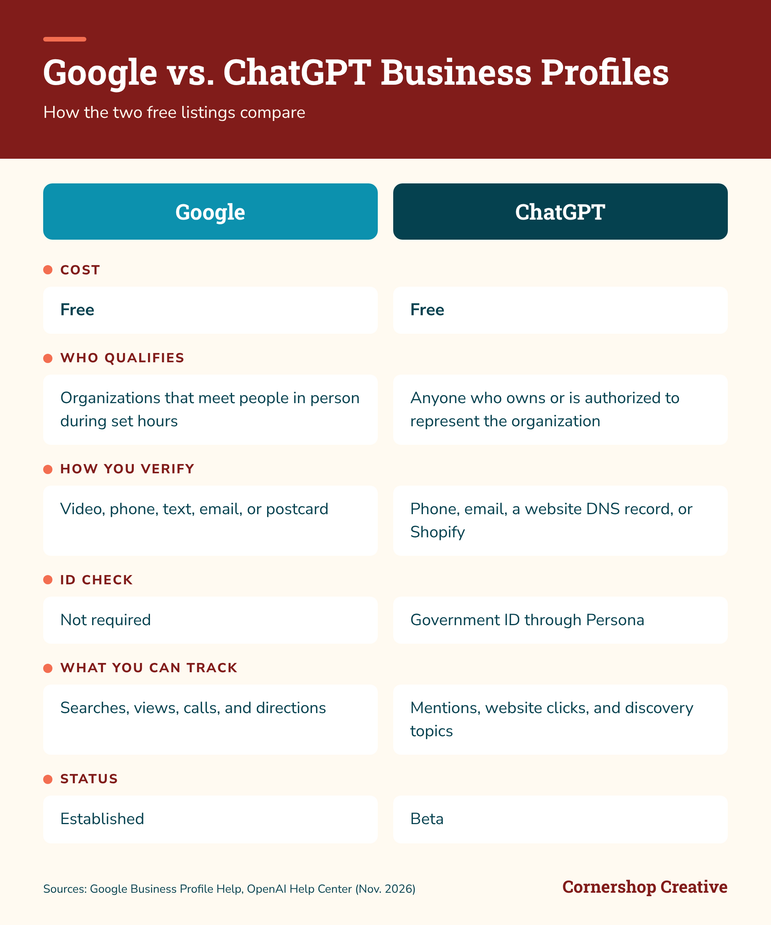
Sources: Google Business Profile Help, OpenAI Help Center
How to set up a Google Business Profile
Most single-location setups take a few hours of work spread over two to three weeks. The waiting is mostly on verification.
Check if you qualify
Google only allows profiles for organizations that meet people in person during set hours. That’s a good fit if you have:
- An office, clinic, store, visitor center, or program site the public can visit
- Staff or volunteers who travel to people, like home repair or in-home services (these are “service-area” profiles, and your address stays hidden)
If your team works fully remote and doesn’t meet people in person, you won’t qualify. A ChatGPT profile may still be a good option.
Step-by-step setup
- Search for your organization first. Look on Google Search and Google Maps using your full name, a shortened name, your phone number, and your address. A profile may already exist, even if no one on your team made it.
- Claim, create, or request access.
- If you see “Own this business?” or “Claim this business,” the profile is unclaimed. Claim it and correct the details.
- If there’s no profile, create one at business.google.com.
- If someone else already manages it, request ownership. Google shows a partly hidden email for the current owner. If you recognize it, like a former staffer or past vendor, reach out to them directly. It’s usually faster.
- Sign in with a shared organization account. Use something like info@ rather than a personal Gmail. That way, access doesn’t walk out the door when someone leaves.
- Complete verification. Google picks which methods to offer. The most common is a short, unedited video recorded in the Google Maps app at your location. It should show your exterior and signage, your interior, and proof you manage the space, like unlocking the door. Review can take up to five business days.
- Fill out your profile. Add your categories, description, hours, website, and photos. Make sure your name, address, and phone number match your website exactly.
- Add your team or agency. Keep your shared account as the Primary Owner. Add others as Managers so they can make updates without controlling who has access.
- Link to Google Ads (optional). If you run Google Ads or have a Google Ad Grant, link your profile so your address can show in your ads. Activating your Google Business Profile will also allow you to start using Location Assets within Google Ads.
Common snags
- Duplicate profiles. Don’t create a new one. Claim the strongest existing profile and ask Google to remove the others.
- No signage. Video verification gets tricky without it. Branded materials or mail with your address can help.
- Pending edits. Google reviews some changes. Give it a few days before editing again, since repeated edits can slow things down.
How to set up a ChatGPT business profile
ChatGPT business profiles are still in beta, so setup takes a little more effort than Google’s. There are two separate approvals: one for your organization/business claim and one for your identity.
Before you start
- Pick the right person. Someone on your team will need to verify their identity through Persona, OpenAI’s verification partner. Expect to upload a government-issued ID. You may also need business registration details and proof that you’re authorized to represent the organization. An agency can’t do this step for you.
- Use a shared inbox you can access. If you verify by email, OpenAI sends a code to the address tied to your organization. A shared inbox like info@ keeps things simple.
- Match your official records. OpenAI checks that your name, address, and any registration or tax number match your official business records. Small mismatches can cause a failed check.
- Know who manages your domain. If you verify with your website, you’ll need to add a DNS record. That might be your IT team, your hosting company, or your web agency, like Cornershop.
Step-by-step setup
- Sign in and navigate to chatgpt.com/business-hub. Use the field that appears to search for your organization.
- Search for your organization. Select your listing if it appears and confirm the ChatGPT account you’ll use to manage it. Some online organizations will see an option to add a new listing if none exists. Local organizations can currently only claim an existing U.S. listing.
- Verify your claim. Choose one of the methods offered:
- Business phone: Get a code by text or automated call.
- Business email: Get a code at the email address associated with your organization.
- Website domain: Add the TXT record ChatGPT gives you to your domain’s DNS settings. Copy the type, host, and value exactly. DNS changes can take time to show up. Let us know if you need help with this step.
- Shopify: Connect your Shopify store, if you have one.
- Wait for claim approval. OpenAI reviews your claim and emails you a decision or a request for more information. This can take up to a few days.
- Complete identity verification with Persona. In your business overview, select Verify and follow the prompts. This step unlocks editing, insights, and the blue verified badge.
- Fill out your profile. Once approved, add your website, description, category, logo, and a cover photo. OpenAI reviews changes before they go live.
- Invite your team or agency. The admin who claimed the profile can add teammates and grant agency access for help with optimization. Each person uses their own ChatGPT account.
What you’ll see in ChatGPT Insights
After you’re verified, the Insights tab shows activity from the past 28 days:
- Mentions: How often ChatGPT references your website, or shows your location for local organizations
- Website clicks: How often people click through to your site
- Discovery topics: Common themes in answers that mentioned you
You won’t see individual prompts or conversations. And a blank metric doesn’t always mean zero. It can mean activity hasn’t reached the reporting threshold yet.
What to keep in mind
Claiming a profile lets you manage your information. According to OpenAI, it doesn’t guarantee more visibility, and advertising doesn’t influence ChatGPT’s answers. Updates can also take time to show up, since ChatGPT still draws on other sources across the web.
Tips for keeping both profiles accurate
Setting up a profile is the first step. Keeping it current is what makes it useful and proves authority across the broader web ecosystem.
- Use the same details everywhere. Your name, address, phone, and website should match across Google, ChatGPT, your website, and directories like Candid or Charity Navigator. Consistent details make it easier for search engines and AI tools to trust what they find.
- Write a clear, plain-language description. Say who you are, who you serve, and where, in a few short sentences. AI tools work best with information that’s easy to understand and quote.
- Keep ownership with your organization. Use a shared account as the owner on both platforms, then add staff and agencies with their own logins.
- Update hours and closures right away. Holiday hours, moves, and program changes are the details people act on most.
- Make your website easy to read, too. ChatGPT doesn’t rely only on your profile. A well-structured site with up-to-date service and contact pages backs up everything your profile says. Our SEO for Nonprofits guide covers the basics.
- Check in every quarter. Look up your organization on Google and ask ChatGPT about it. If something’s off, fix it at the source.
Frequently asked questions
Is a ChatGPT business profile free?
Yes. Claiming and managing your profile is free. You don’t need to run ChatGPT ads or have an enterprise account.
Can a nonprofit claim a ChatGPT business profile?
Yes, as long as you own or are authorized to represent the organization and can complete verification. Availability depends on your location and organization type while the feature is in beta.
Will claiming my profile help me show up more in ChatGPT?
Not directly. OpenAI says claiming a profile doesn’t guarantee more visibility. What it does is help ChatGPT share accurate information about you when you do come up.
Can my agency set up my ChatGPT profile for me?
Partly. An agency can handle the DNS record, write your description, add photos, and review your profile. A person from your organization has to complete the identity verification. After that, your admin can give the agency access.
Do I need a Google Business Profile if I already have a ChatGPT profile?
If you meet people in person, yes. They serve different platforms. Google powers Search and Maps results, and ChatGPT powers its own answers. Having both covers more of the places people look.
How long does setup take?
A Google Business Profile usually takes two to three weeks, mostly waiting on verification. ChatGPT review times vary. Plan for a few days to a couple of weeks for both approvals.
How Cornershop can help
We recently set up Cornershop’s own ChatGPT profile, so we know where the tricky spots are. We also help nonprofits claim and clean up their Google Business Profiles as part of our SEO and ads work.
We can help you:
- Check whether your organization qualifies for each profile
- Track down an existing profile and sort out who owns it
- Add your DNS record, or send exact instructions to whoever manages your domain
- Write a clear profile description that works for people and AI tools
- Add your logo and photos once you’re approved
- Link your Google Business Profile to Google Ads or your Ad Grant
- Review both profiles before they go live
If you’re already working with us on SEO or search visibility, just reach out to your Cornershop contact. If you’re new to Cornershop, we’d love to hear from you. We’re happy to talk through what makes sense for your organization.